
🧭 Why This Matters
Getting organized digitally is your first step toward becoming more productive. A consistent, level-based folder system helps you:
- Instantly understand where you are in the hierarchy
- Instantly be able to lookup and retrieve any document, file, media without having to hunt for it
- Makes you feel organized and in control
- Avoid clutter and reduce file-hunting stress
🧹 Step 1: Clean the Slate
We are going to create a folder hierarchy structure starting from the “Documents” folder that exists in every computer’s root. After we would have completed creating this folder hierarchy structure, we would implement or copy this entire structure on any of our backup drives and even on the drives in the could (Google Drive, One Drive or so on).
As we will be using the folder structure everywhere, we would know exactly where any document or file exists on any platform.
🏷️ Step 2: Folder Hierarchy Using Level-Based Prefixes
Under “Documents” folder on your computer, create a top level hierarchy of folders (for example , as given in the following screenshot)
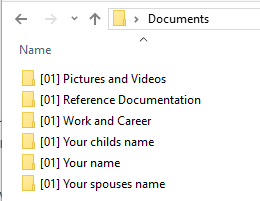
- Prefix all the names of the folders with [01], this way when you are inside any folder you will know how many parent folders it has.
- Put your name on one folder and if you have files from your spouse / children then create folders for them too – to keep their files in
- These are top level folders. write down what your top level folders will be and accordingly create those.
- In the above example – all the scanned documents like passport, pan card, etc. will go in “[01] Reference Documentation” folder.
- Within this folder you will create “[02] Pan Card” folder and put the scans of your pan card in it.
Similarly, “[01] Pictures and Videos” folder will have a folder “[02] Years” inside it – Which in turn will have a folder “2025” as a year number.
This folder will hold pics and videos taken in the year 2025.
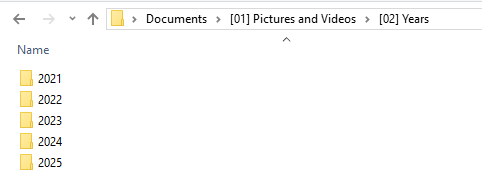
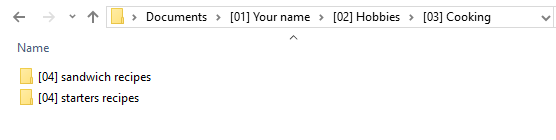
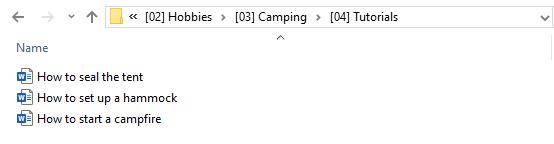
You can see in the address bar of this window – the entire path to this folder
Numbering it like this makes it easy to understand and remember.
Also, if you are in any numbered folder, you will know at what level you are at.
🔍Step 3: Inside Each Folder
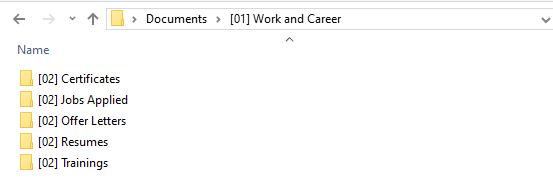
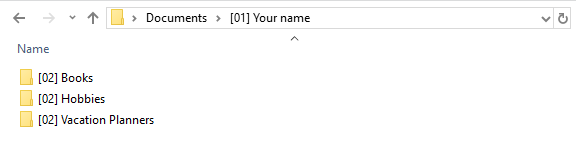
Create these levels and put all your documents inside your “last level” folder.
Here are some examples:
☁️ 📆 Step 4: Sync It Across Cloud & Backup Drives
- For external back up drives, copy the folder regularly (monthly).
- On Google Drive create the same folder hierarchy and upload the files. (You may skip uploading the scanned id papers like passport, pan card, etc)
After you have adopted this practice, you will find that you are more organized, you know where stuff is and you can easily retrieve it.